The lecture survey and its result on the lecture page
The result closes when the lecture ends, and students see only what you made public.
Recorded on the Arabic interface, with Arabic captions.
Step by step
- Add a survey to the lecture.
- Students answer during it.
- After the end, the result shows on the lecture page as it closed.
- Private notes stay yours alone.
More for the lecturer
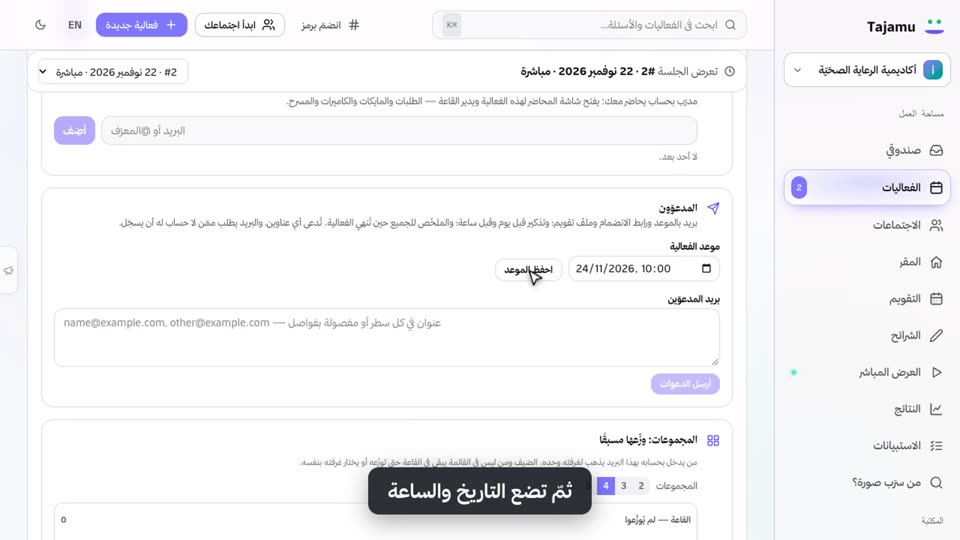 1:00Set the lecture date and the class is notifiedPick the class and the date: every student gets a notice with the day, time and class name, then a reminder one hour before.
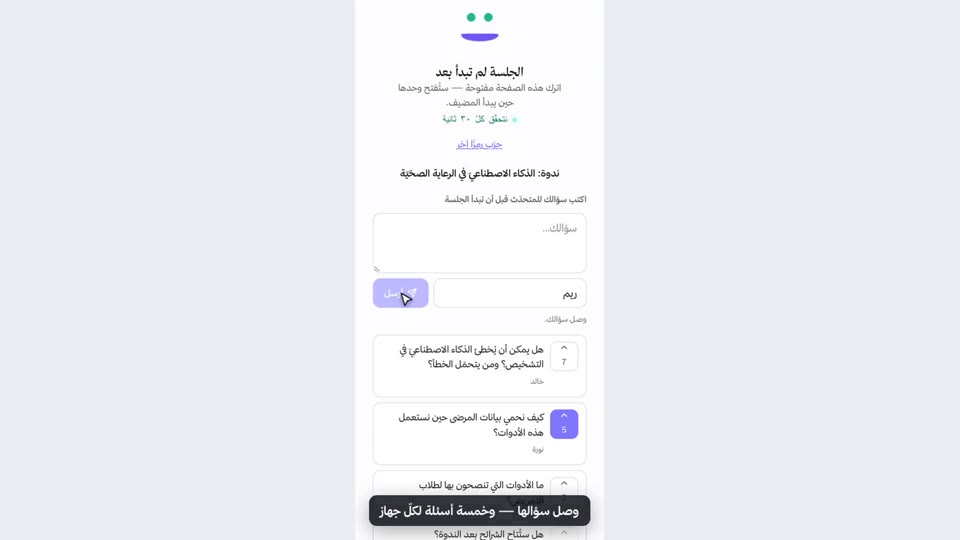 1:49Take questions before and after the sessionThe link works while the room is closed: people ask and upvote before you start, you move the questions into the session in one click, and the box stays open for days after.
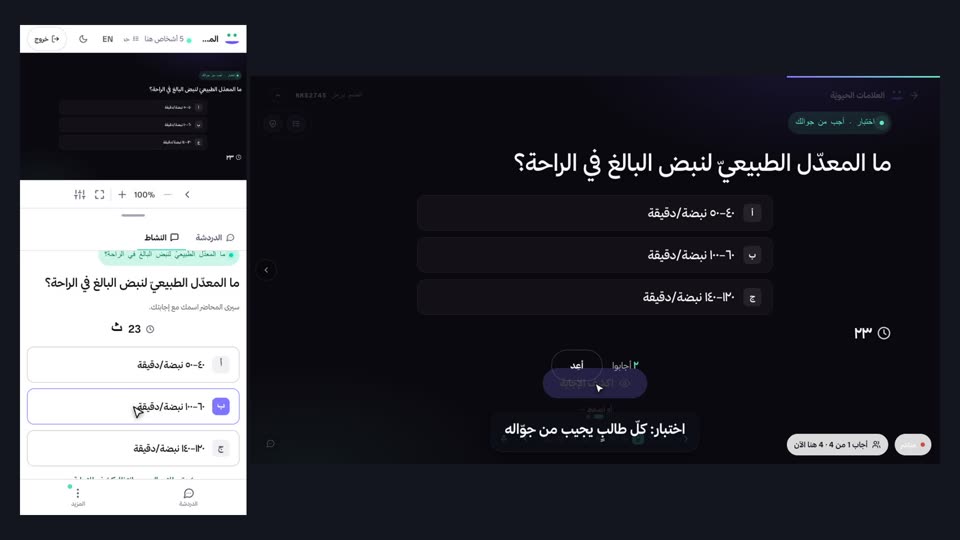 1:20The live lecture: activities students answerStart the activity with the big button on the slide, and student answers appear in front of you as they come.
 1:21Activity kinds: word cloud, images, ranking and ratingSeven kinds in one lecture — and how each looks on the student’s phone.
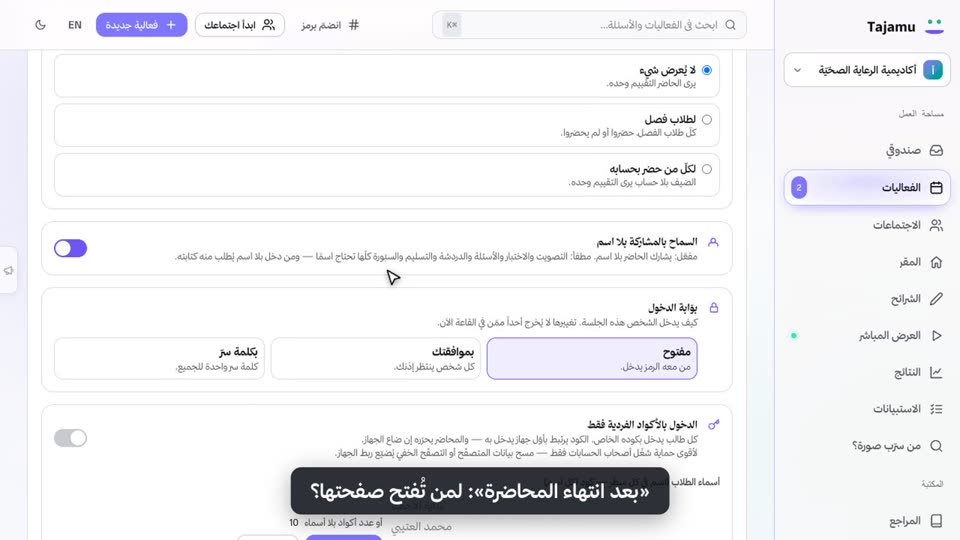 0:34What stays for students after the lecture? You chooseHidden, for the class, or for everyone who attended — and which sections show.
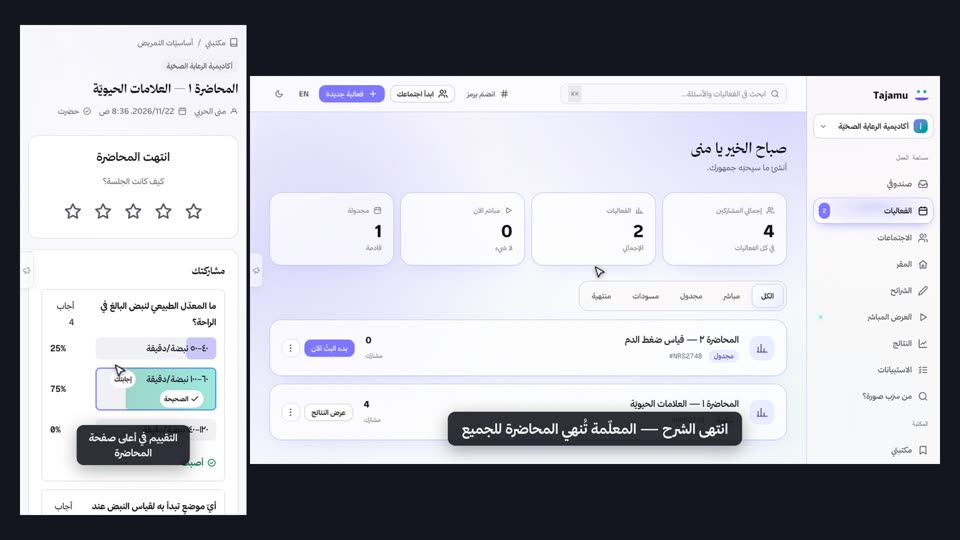 0:55End the lecture and students land on its pageThe moment you end, every student moves to the lecture page in their library, with what you allowed.
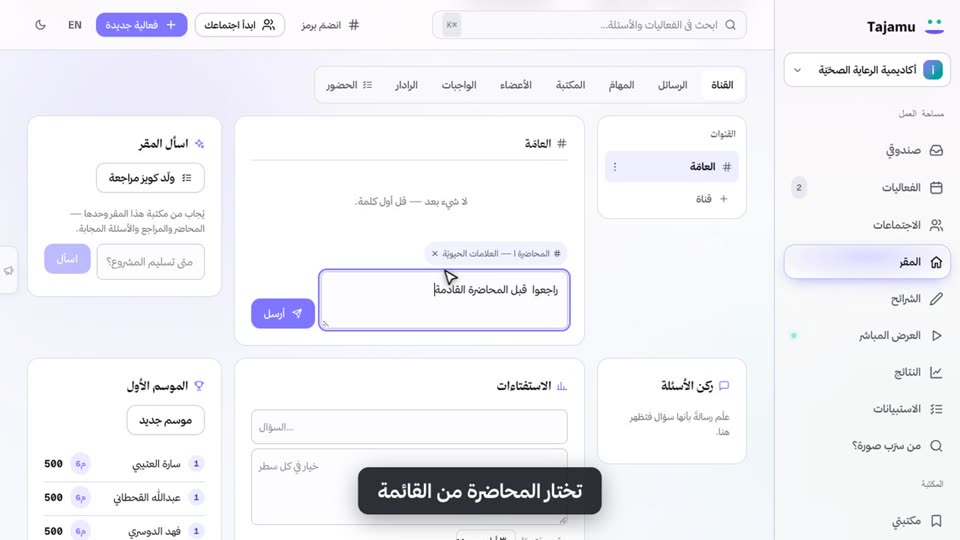 0:36Mention a lecture in the class chat with “#”Type “#” and pick the lecture: the message arrives with a card that opens its page in one tap.
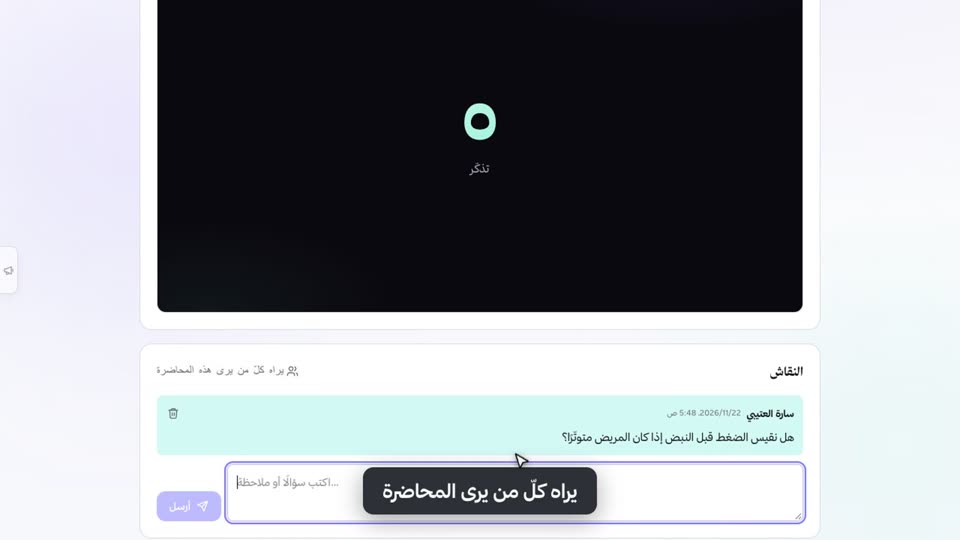 0:38“Discussion”: student questions after the lectureA conversation on the lecture page that stays afterwards — the student asks and you answer.
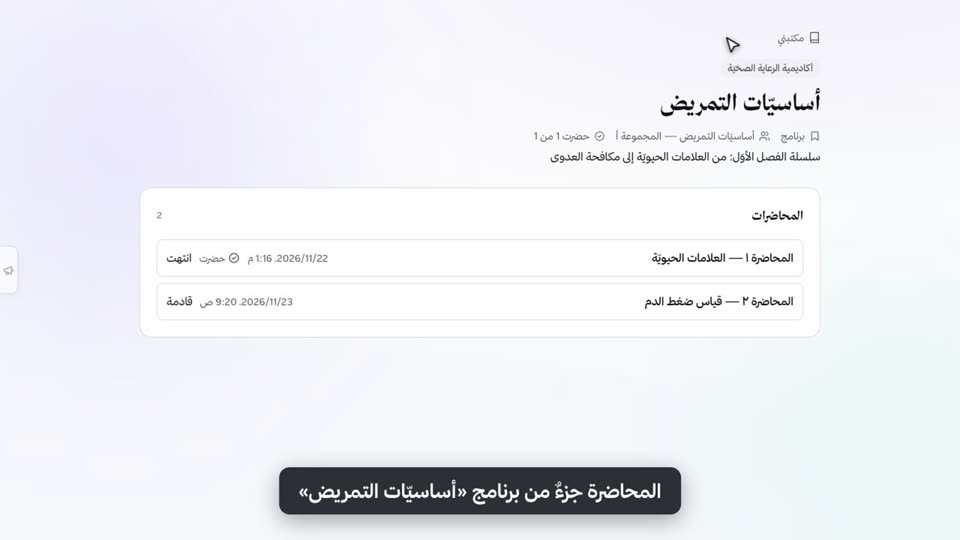 0:27“Program”: a lecture series on one pageGather a course’s lectures into a program: finished ones open their page, upcoming ones show their date.