Mention a lecture in the class chat with “#”
Type “#” and pick the lecture: the message arrives with a card that opens its page in one tap.
Recorded on the Arabic interface, with Arabic captions.
Step by step
- In the class chat type “#” then the start of the lecture’s name.
- Pick the lecture from the list and send.
- Students see the lecture card inside the message.
- One tap on the card opens the lecture page.
More for the lecturer
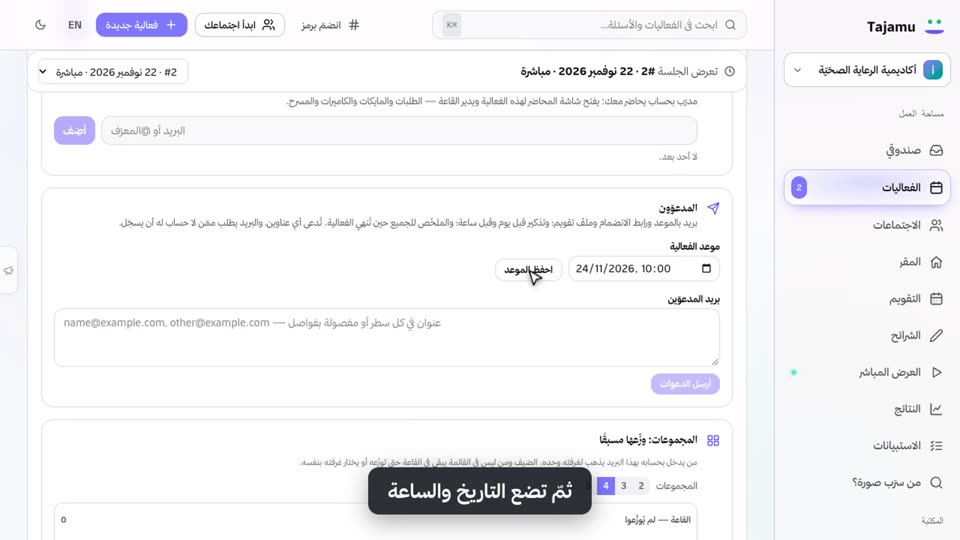 1:00Set the lecture date and the class is notifiedPick the class and the date: every student gets a notice with the day, time and class name, then a reminder one hour before.
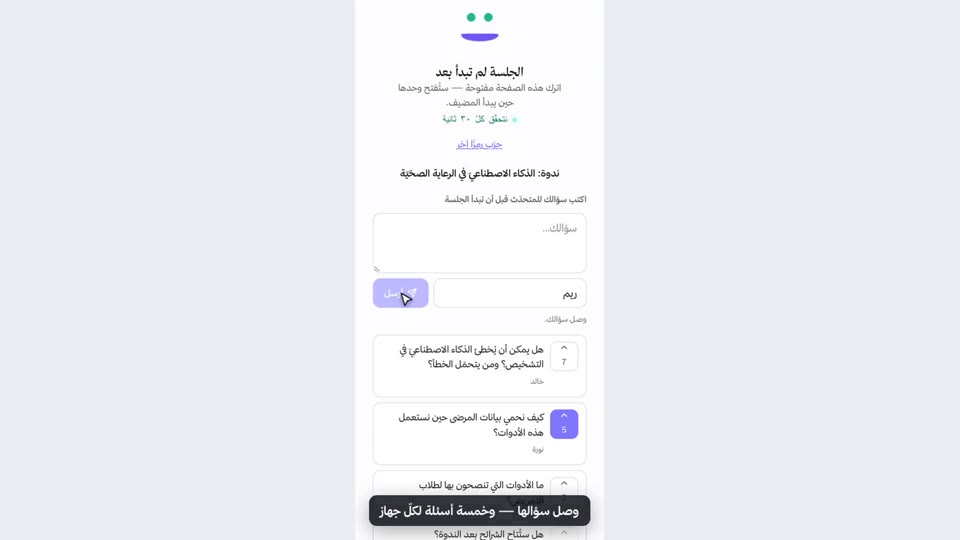 1:49Take questions before and after the sessionThe link works while the room is closed: people ask and upvote before you start, you move the questions into the session in one click, and the box stays open for days after.
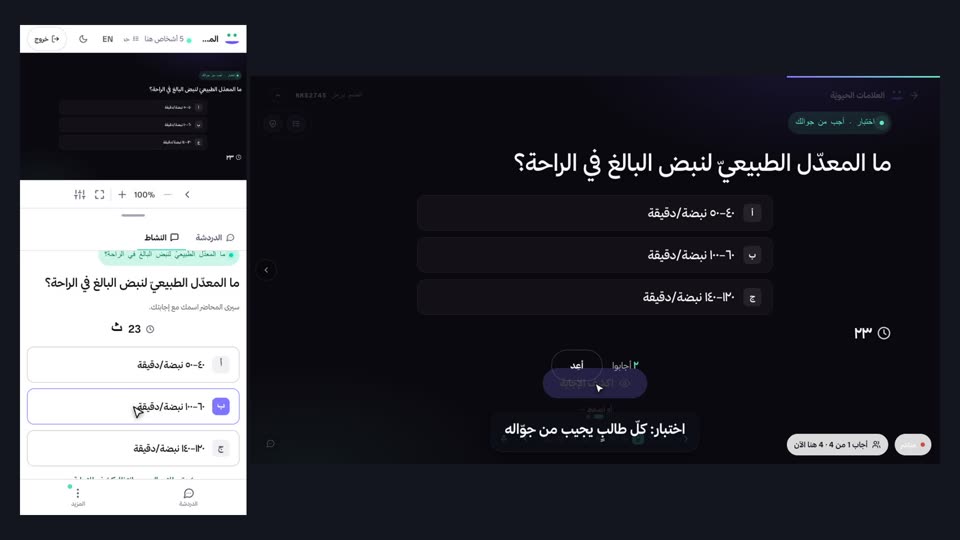 1:20The live lecture: activities students answerStart the activity with the big button on the slide, and student answers appear in front of you as they come.
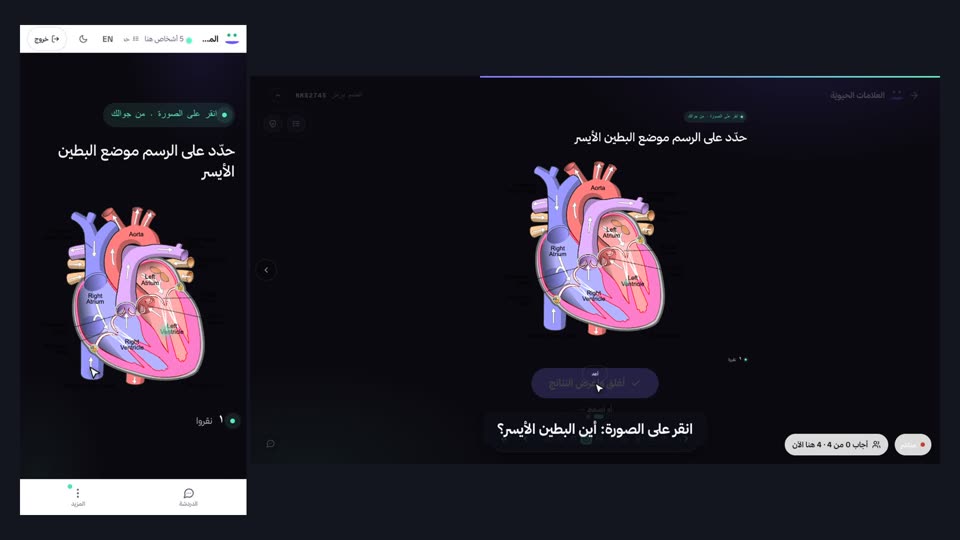 1:21Activity kinds: word cloud, images, ranking and ratingSeven kinds in one lecture — and how each looks on the student’s phone.
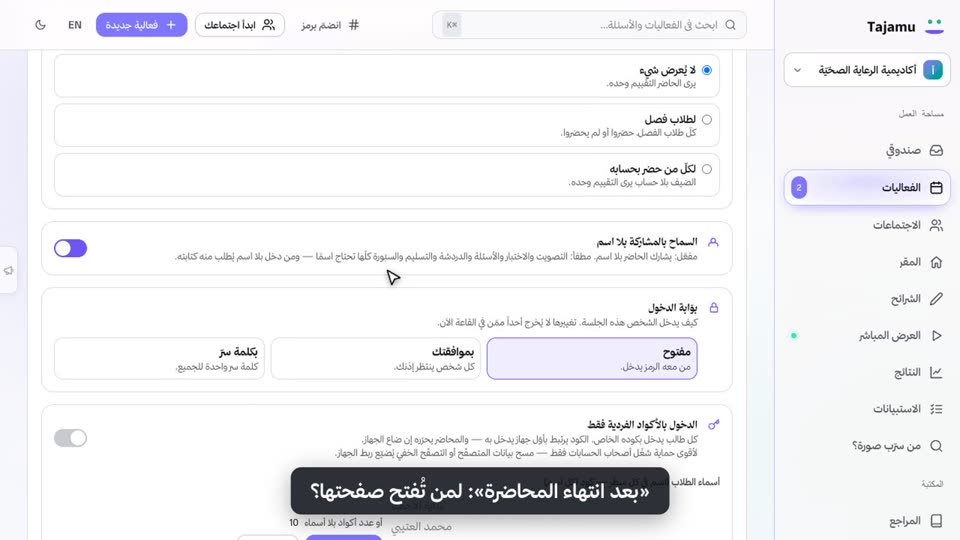 0:34What stays for students after the lecture? You chooseHidden, for the class, or for everyone who attended — and which sections show.
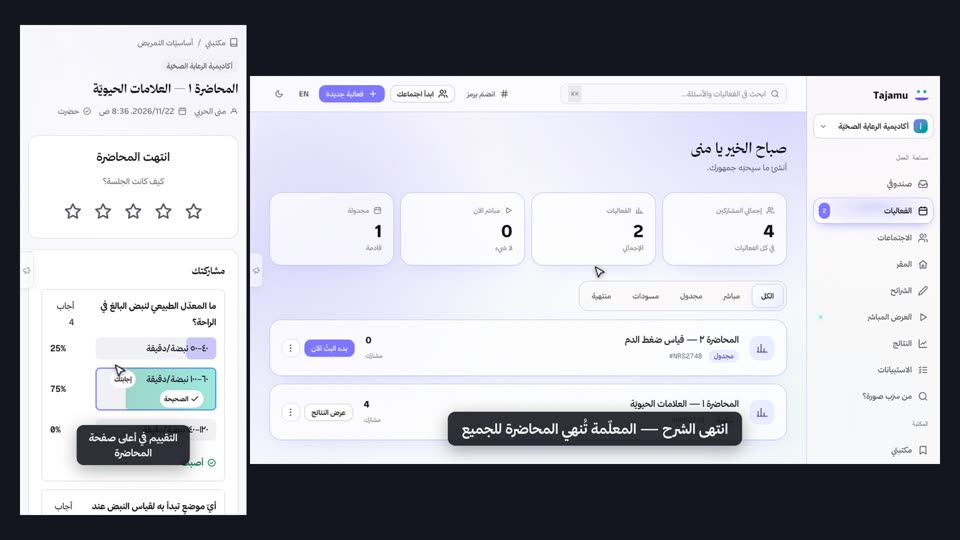 0:55End the lecture and students land on its pageThe moment you end, every student moves to the lecture page in their library, with what you allowed.
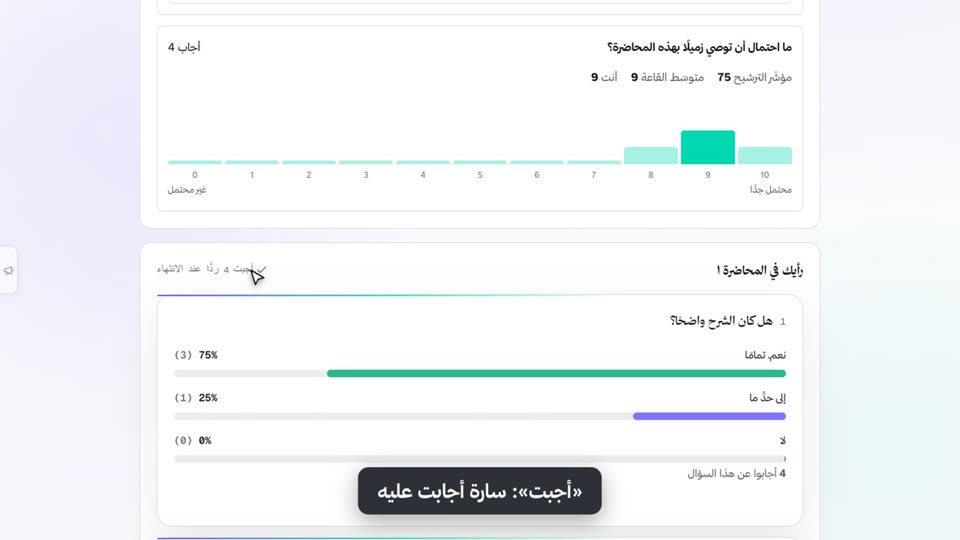 0:21The lecture survey and its result on the lecture pageThe result closes when the lecture ends, and students see only what you made public.
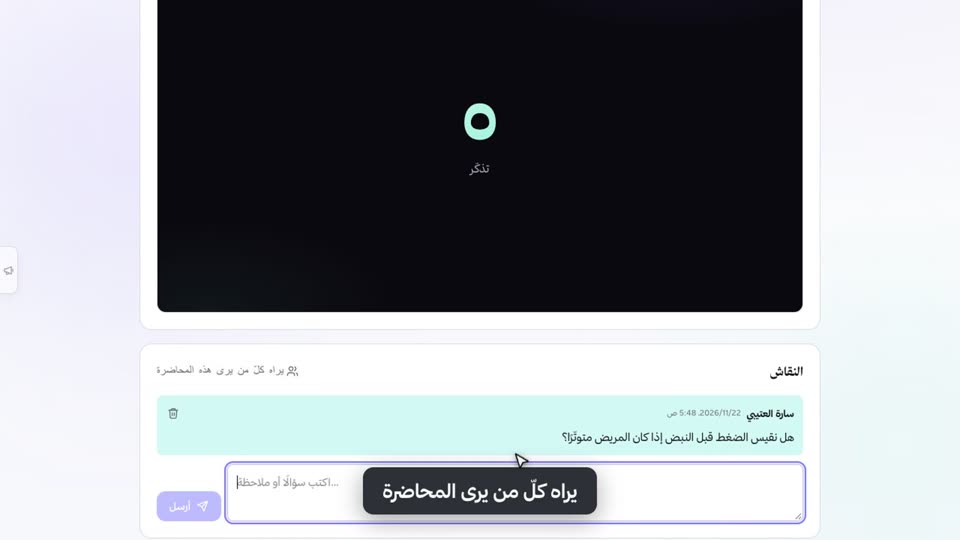 0:38“Discussion”: student questions after the lectureA conversation on the lecture page that stays afterwards — the student asks and you answer.
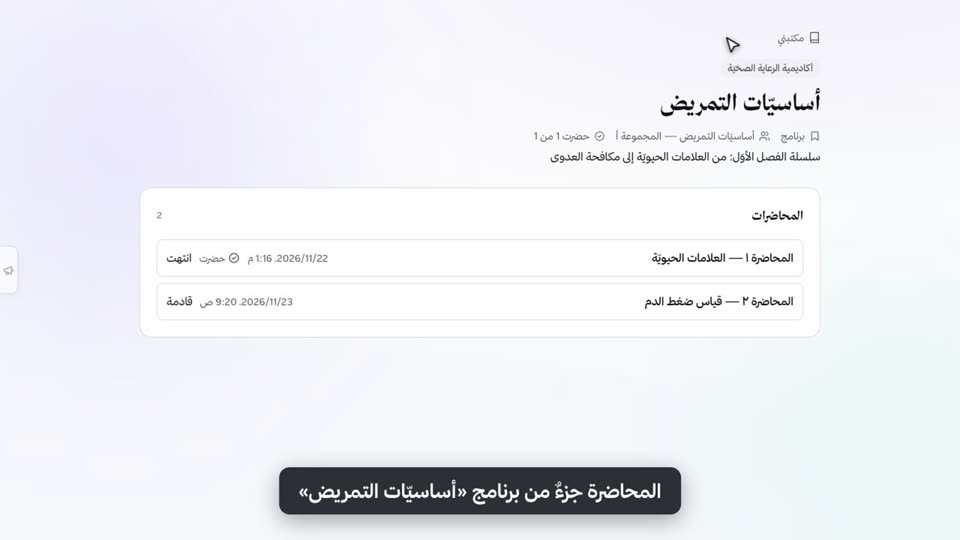 0:27“Program”: a lecture series on one pageGather a course’s lectures into a program: finished ones open their page, upcoming ones show their date.